
A short while ago, Santa Claus came to me for a short visit to drink a cup of tea together. That was very pleasant, but I had the idea that there was something more, knowing that he is always busy, especially these days. After some time, he came forward and said that the elves had found my distribution GnomeTools and were eager to use it. It looks so promising. However, they had problems finding any documentation about it. I had to admit that there was still a lot missing. My excuse was that the package needed a lot more classes and might also change here and there. Santa Claus said that that shouldn’t be a problem as long as I keep the version below 1 ;-). Santa said that he would like to see some examples so that his elves could do something with the classes.
Ok, here we go then …
Very short example
For the people working a lot with scripting languages, it would be nice to show some information in a kind of message dialog. This next example will show a simple way to do just that. The dialog window will disappear after pressing the OK button.
use GnomeTools::Gtk::MessageDialog;

my Str $message = Q:q:to/EOM/;
 I would heavely recommend continuing
 using the Raku language whatever
 your plans are in the near or distant
 future, because it will bring you
 fortune and happyness!
 EOM

my GnomeTools::Gtk::MessageDialog $message-dialog;
$message-dialog .= new(:$message);
And the result …

A Dialog
A more elaborate example is a dialog window that shows more than just text. We start by getting the necessary ingredients and a simple class with callback methods. These methods are called from the native routines. The method reads the text entry and copies this string into the status field. Both fields are in the dialog, which we will see later.
use GnomeTools::Gtk::Dialog;

use Gnome::Gtk4::Label:api<2>;
use Gnome::Gtk4::Entry:api<2>;

class helper {
  method say-hello (
    GnomeTools::Gtk::Dialog :$dialog,
    Gnome::Gtk4::Entry :$entry
  ) {
    $dialog.set-status("hello <b>$entry.get-text()\</b>");
  }
}
Then we create a header text for the dialog and a text entry field with a placeholder text instructing you what to do.
After that, the dialog is created with a title and a header. A statusbar is added below the button row.
In this dialog window, we add content. It always consists of a text line on the left and a widget to its right. In this case, a text entry. You can add as many rows as you like.
Then, buttons are added. One ‘Help’ button which, when clicked, calls the say-hello() routine defined earlier. The other is to tear down the dialog window.
my Str $dialog-header = Q:a:to/EOHEADER/;
 This is a small test to show a dialog with an entry
 and a few buttons. The <b>Hello</b> button shows some
 text in the statusbar when pressed. The <b>Cancel</b>
 button stops the program.
 EOHEADER

with my Gnome::Gtk4::Entry $entry .= new-entry {
  .set-placeholder-text(
    'Text shows up after pressing Hello'
  );
  .set-size-request( 400, -1);
}

with my GnomeTools::Gtk::Dialog $dialog .= new(
  :$dialog-header, :dialog-title('Test Dialog'),
  :add-statusbar
) {
  .add-content( 'Please enter your name', $entry);
  .add-button(
    helper.new, 'say-hello', 'Hello', :$dialog, :$entry
  );
  .add-button( $dialog, 'destroy-dialog', 'Cancel');
  .show-dialog;
}
And when I run the program, it shows up as

Add CSS
We can use CSS to pimp up the display. To do this, we must import GnomeTools::Gtk::Theming at the start of the program.
Then add some code in the block where the dialog window is created.
with my GnomeTools::Gtk::Dialog $dialog .= new(
  :$dialog-header, :dialog-title('Test Dialog'),
  :add-statusbar
) {
  # … content and buttons …

  my Str $css-text = Q:q:to/EOCSS/;
 .dialog-tool {
 background-color: #afafaf;
 }

 .dialog-header {
 color:rgb(59, 1, 65);
 padding-left: 15px;
 padding-right: 15px;
 }

 .dialog-content label {
 color: #004060;
 }

 .dialog-button label {
 color:rgb(15, 165, 240);
 }

 .statusbar-tool {
 background-color:rgb(84, 10, 85);
 border-width: 5px;
 border-style: groove;
 border-color:rgb(144, 0, 255);
 }

 .statusbar-tool > label {
 color:rgb(0, 0, 90);
 }

 .dialog-entry {
 border-width: 5px;
 border-style: inset;
 border-color:rgb(144, 0, 255);
 color:rgb(255, 141, 141);
 }
 EOCSS

  my GnomeTools::Gtk::Theming $theme .= new(:$css-text);
  $theme.add-css-class( $entry, 'dialog-entry');
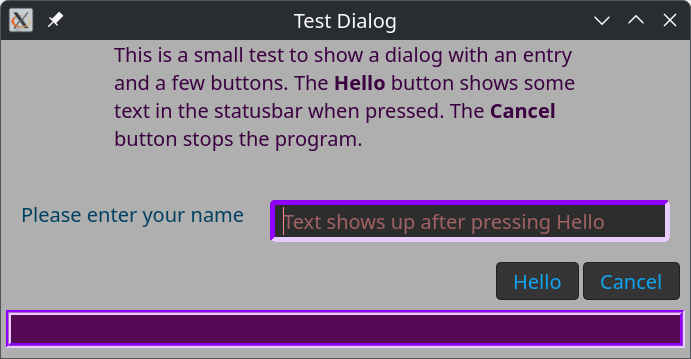
Nice, isn’t it! The CSS classes dialog-tool, dialog-header, dialog-content, and dialog-button are defined in the GnomeTools::Gtk::Dialog class. The CSS class statusbar-tool is defined in the GnomeTools::Gtk::Statusbar class. In the program, we added the class dialog-entry. Note, however, the CSS used by Gnome is not exactly the same as one might be used to, You can find good information here.
Note that the call to .show-dialog() does not return until the cancel button is clicked, which destroys the dialog window. So, for the shell scripting elves, we could add a line just to the end, like so;
  .show-dialog;
}

say $entry.get-text
This gives us the possibility to return information into a shell script. For example, when this program is stored in file xt/dialog.rakutest;
echo Hello `raku xt/dialog.rakutest`
Installing and other info
You can install this distribution with zef
> zef install GnomeToolsReference information on Gnome::* modules can be found here.
 Raku Advent Calendar
One thought on “Day 5 – Tools for Gnome::Gtk4”